
 Airfoil
 Audio Hijack
 Farrago
 Fission
 Loopback
 Piezo
Piezo
 SoundSource
Copyright © Rogue Amoeba Software, Inc. All rights reserved.


SoundSource makes it easy to apply audio effects to any audio playing on your Mac. SoundSource includes several built-in audio effects, and supports Audio Unit effects as well.
The following two pages provide information on those audio effects. On this page, you can get details on several facets of effects in SoundSource.
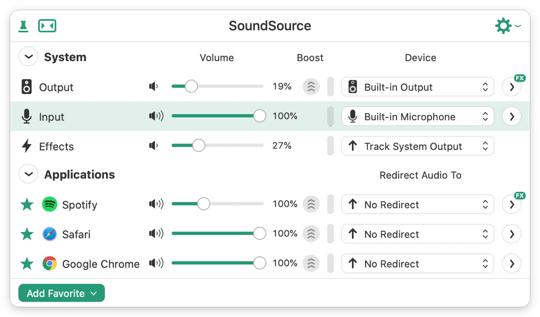
To see which of your audio sources are being adjusted through the use of audio effects, look for the helpful FX indicator on the Hide/Show Effects button:

In the example screenshot below, audio effects are being applied to the System Output device, and to Spotify's audio, while audio from Safari and Chrome is not being adjusted.
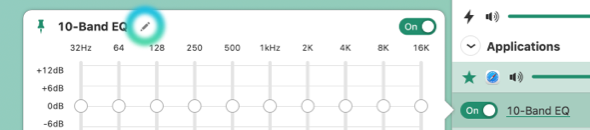
In each audio effect’s popover, you’ll see the effect’s default name. Next to that name is an Edit pencil. When you click this, you’ll be able to modify the name of the effect.
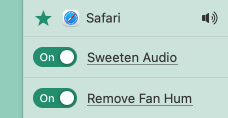
In the image above, two identical effects have each been given nicknames, to help distinguish them from one another. Effect nicknames are very useful for keeping track of what each effect is doing.

At the bottom of effects popovers in SoundSource, you'll see a section called Presets. Presets are a way to save settings for a particular effect, for later use. Presets are saved at the application level, which means they can be used in any instance of the effect in SoundSource.
A simple example of presets can be found in the 10-Band EQ. It comes with built-in presets for genres like “Rock” or “Jazz”, but you can also save custom presets. Tweak the settings to your liking, then select “Save as Preset” from the Presets menu. You'll be able to name your preset, and it will always be accessible from the Presets menu.

In addition to the 10-Band EQ, Audio Unit effects also support saving presets. Once you configure presets, they'll save you a tremendous amount of time.
When the Bypass Effects option is enabled, effects processing will be disabled for the specified application or output device. This makes it possible to quickly toggle between an active or disabled effects configuration. Note that the On/Off state of each individual plugin will remain unchanged.
When Bypass Effects is turned on, a warning indicator will be shown to indicate that effects processing is disabled.
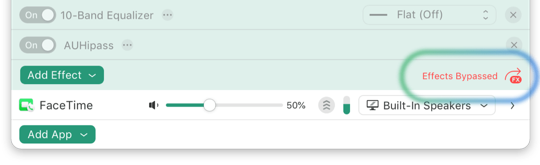
As indicated, effects on the Music app are being bypassed
To access the Bypass Effects setting, control-click the application or Output Device in the main window. The resulting contextual menu will include a Bypass Effects option which you can toggle on or off. In addition, when an application or the Output Device is selected in SoundSource, pressing Option-Command-B will toggle this option.
Audiophiles may be curious about the exact pipeline through which audio flows when using SoundSource. Audio first flows through any per-app adjustments which are configured, and then through any System Output Device adjustments.
Within a single effects area, audio is adjusted by each plugin in sequence, moving from top to bottom. There is one exception, however: the Volume Overdrive effect. Regardless of the location of this effect, it is always applied last.
← PreviousNext →Per-App AdjustmentsBuilt-In Effects