
 Airfoil
 Audio Hijack
 Farrago
 Fission
 Loopback
 Piezo
Piezo
 SoundSource
Copyright © Rogue Amoeba Software, Inc. All rights reserved.


 On MacOS 12 (Monterey) and higher, SoundSource provides a slew of actions for use with the built-in Shortcuts app. These allow you to automate many different things, including changing device volumes, setting effect presets, toggling effects processing, and much more.
With the Shortcuts actions included in SoundSource, it’s possible to integrate SoundSource into larger external workflows. This section provides a brief explanation for each of the included actions.
Get Active Applications: Returns a list of all applications that are currently producing audio, or have done so in the past 15 seconds
Get Device List: Returns a list of all available devices for the system's audio output or audio input
Get Source Device: Returns the device used by the chosen or supplied Source
Get Source Effects: Returns a list of all effects loaded for the chosen or supplied Source
Open/Close Effect Window: Opens or closes the window for the selected effect within the specified Source
Set All Effects Bypass: Sets the entire processing chain for the chosen or supplied Source(s) to “Active” or “Bypassed”, or toggles the chain’s state
Set Device Mute: Sets the hardware mute for the chosen or supplied device(s) to “Muted” or “Unmuted” if supported by the device(s), or toggles the mute state
Set Device Sample Rate: Sets the sample rate for the chosen or supplied audio device(s)
Set Device Volume: Sets the hardware volume on the chosen or supplied audio device(s), if supported by the device(s)
Set Effect Bypass: Sets the specified (via Magic Variable) audio effect to “Active” or “Bypassed”, or toggles the effect’s state
Set Effect Preset: Selects the selected preset for the chosen audio effect
Set Magic Boost: Sets the “Magic Boost” feature for the chosen or supplied Source(s) to “Enabled” or “Disabled”, or toggles the feature’s state
Set Metering: Sets the level meters animation for the chosen or supplied Source(s) to “Active” or “Bypassed”, or toggles animation’s state
Set Source Device: Sets the device for the chosen or supplied Source
Set Source Effect Bypass: Sets the chosen or supplied audio effect to “Active” or “Bypassed”, or toggles the effect’s state, for the chosen or supplied Source
Set Source Mute: Sets the specified Source(s) to “Muted” or “Unmuted”
Set Source Volume: Sets the volume level of the selected Source(s) to the specified value
Using Shortcuts, you can chain multiple actions together to create powerful changes that take effect automatically. Below, we've provided some examples.
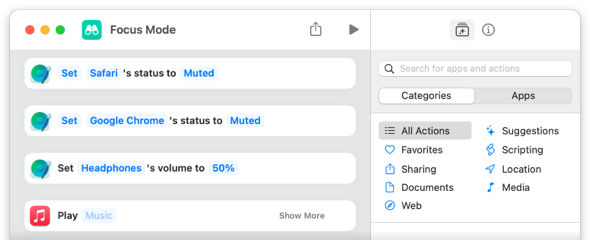
Focus Mode: Mute audio from select apps, then start a specific music playlist.
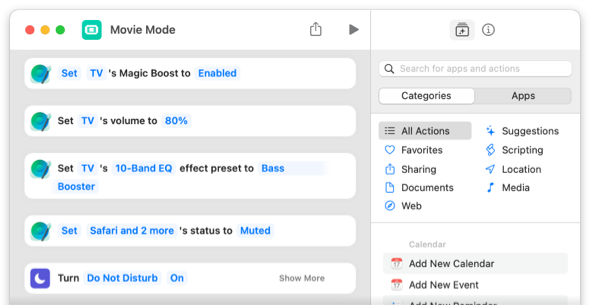
Movie Mode: Set audio playback of the TV app, mute other sources, and turn on 'do not disturb'.
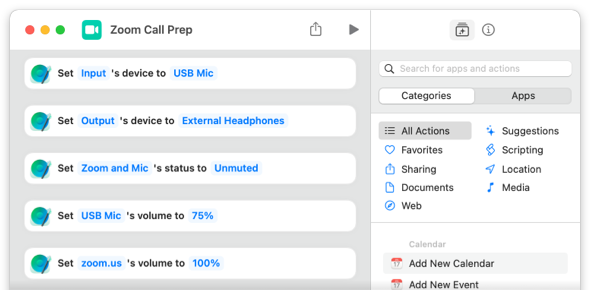
Call prep: set proper inputs and umute your mic.
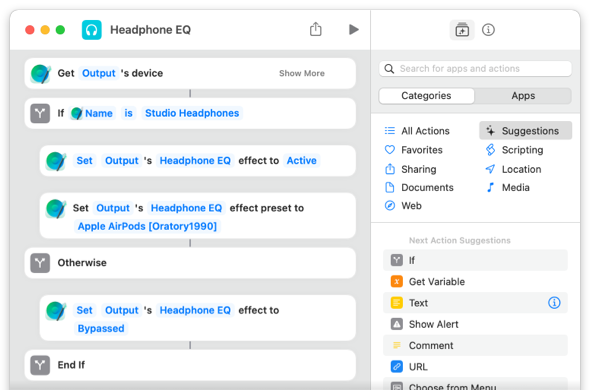
Headphone EQ: Set an EQ preset based on the specific output device.