
 Airfoil
 Audio Hijack
 Farrago
 Fission
 Loopback
 Piezo
Piezo
 SoundSource
Copyright © Rogue Amoeba Software, Inc. All rights reserved.


SoundSource’s Permissions window can be accessed from the SoundSource menu. This window lists permissions which allow SoundSource to run optimally.
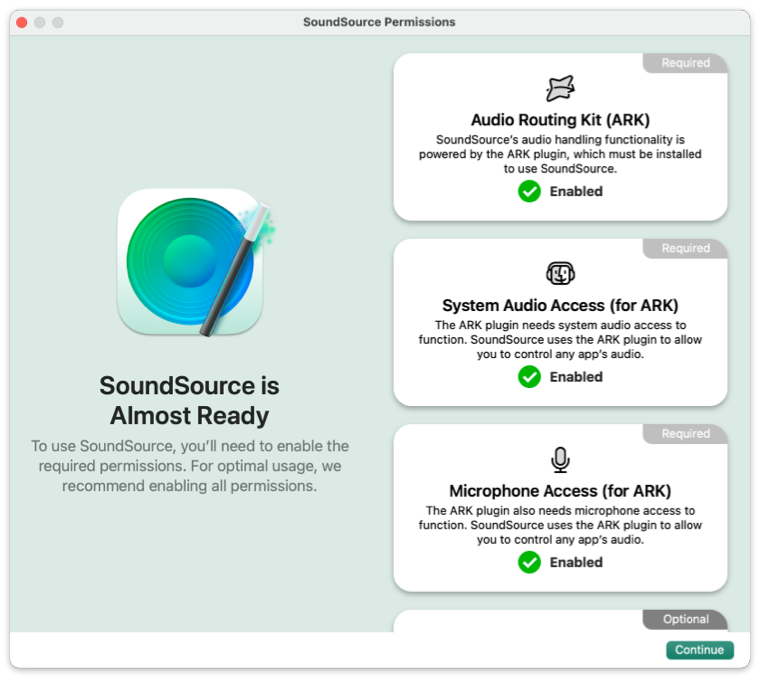
SoundSource’s Permissions window
SoundSource uses the ARK plugin to route audio on your Mac according to your configuration. To use SoundSource, you must install ARK. This installation will require the administrator password for your Mac.
Once installed, ARK needs system audio access to enable you to route audio on your Mac. This access is required for SoundSource to operate, and you’ll be prompted to grant permission the first time you launch the app.
ARK also needs microphone access to enable you to route audio on your Mac. This access is required for SoundSource to operate, and you’ll be prompted to grant permission the first time you launch the app.
In order for the Super Volume Keys feature to work, SoundSource must have Accessibility access.
When Accessibility access has not yet been granted, the Audio tab of SoundSource’s Settings window will show this notice:
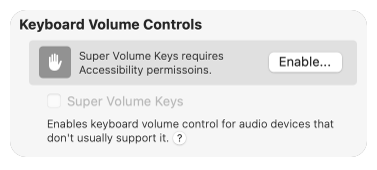
Click the Enable button to open the Permissions window, then click the Enable window in Accessibility Access section. You’ll see a brief explanatory dialog:
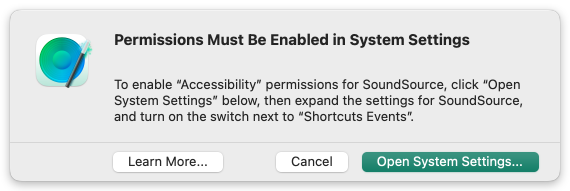
Follow these instructions to enable Accessibility access for SoundSource, after which Super Volume Keys will be activated.
For more information on Super Volume Keys, please see this article.
On MacOS 14 (Sonoma) and higher, you’ll need to enable Bluetooth access for SoundSource to provide the optimal experience with Bluetooth audio devices and your Mac. This includes the ability to connect to devices from within a device selector, as well as accessing features such as battery status.
When Bluetooth access has not yet been granted, SoundSource’s device selectors will show this note:
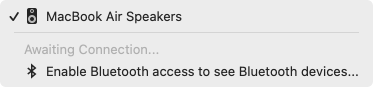
Select the Enable Bluetooth access to see Bluetooth devices… option, then click the Enable button in the Bluetooth Access section. You’ll then see this prompt:
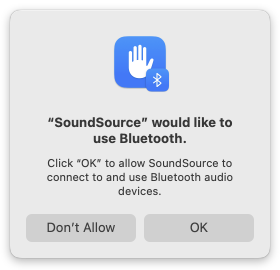
Click OK to enable Bluetooth access for SoundSource, and you’ll be all set.
If you’ve previously denied SoundSource permission to access Bluetooth, you’ll see the following dialog when you try to enable the permission.
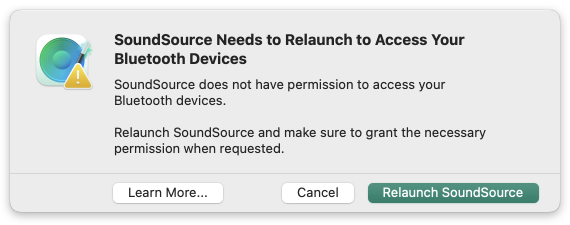
Click Relaunch SoundSource, then grant permission when the application relaunches.
← PreviousNext →SettingsPurchasing